Back
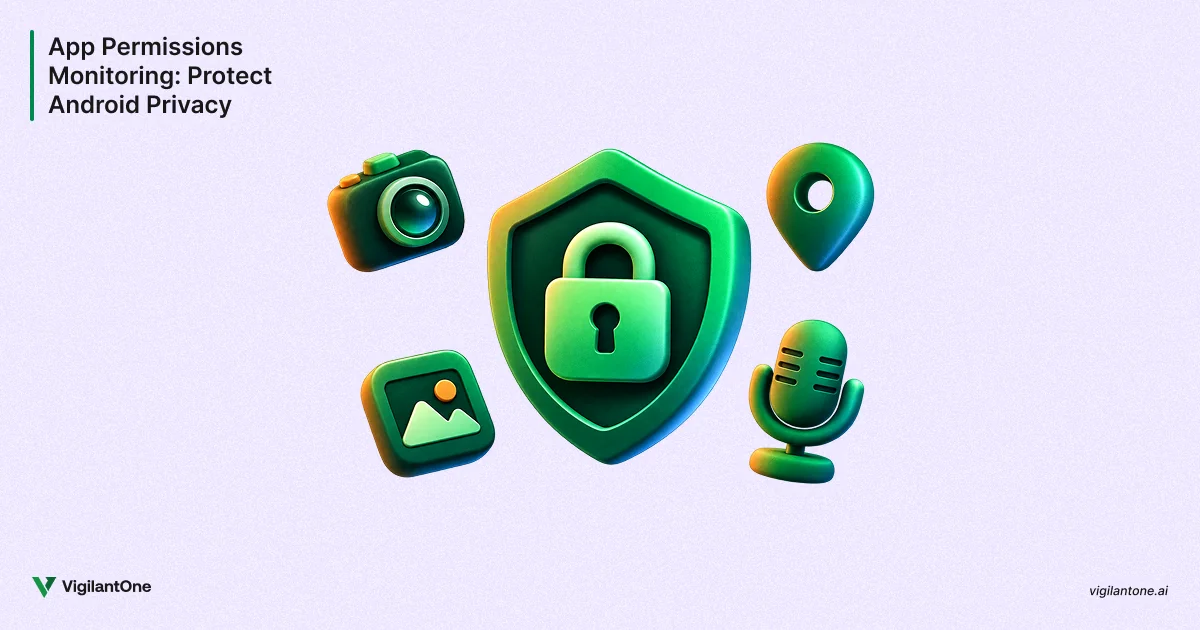
Does every Android app need your camera, microphone, contacts, or location? No. Tapping “Allow” without checking can expose personal information to unnecessary access and tracking.
App permissions monitoring helps you review that access. This matters when you use social media, messaging, shopping, and mobile banking apps in Bangladesh. Learn how to check and revoke permissions and protect personal data.
What is app permissions monitoring?
App permissions monitoring means checking which apps can use sensitive phone features or information, such as your camera, microphone, location, contacts, SMS, and photos. Review access in Android Settings and the Privacy Dashboard, then remove permissions an app does not need. Monitoring improves privacy, but it cannot prove that an app is spyware.
What are Android app permissions, and why do they matter?
App permissions let Android apps use features or access data. A camera app needs camera access; a map may need GPS. Android asks when an app first uses a protected feature. These are runtime permissions.
Access can expose personal data. A social app may read your address book. Ask whether each request fits the app’s purpose.
Which Android app permissions are risky?
Review permissions that expose sensitive information.
Permission | Privacy concern |
|---|---|
Camera / Microphone | Images, video, or audio access |
Location / GPS | Places you visit and travel patterns |
Contacts | Names, numbers, and relationships |
SMS / Call logs | Messages, codes, and calling history |
Photos / Gallery | Personal images and videos |
Accessibility | Ability to observe or interact with screen content |
Display over other apps | Ability to place content over other screens |
Why does a flashlight app need camera access? Some older Android devices use the camera’s flash hardware, so there may be a technical reason. Check the developer and explanation; if the request seems excessive, choose another app.
Malicious apps may abuse Accessibility and overlay access. Grant them only for a clear reason.
How to check app permissions on Android
Menus vary by Android version.
Check an individual app
Open Settings → Apps.
Select an app.
Tap Permissions.
Review allowed access and select a permission to change it.
On Samsung, Xiaomi, Realme, and Oppo, search Settings for “Permission Manager” or “Privacy.”
Use the Privacy Dashboard
On supported Android versions, open Settings → Privacy → Privacy Dashboard (the path may vary). Review recent camera, microphone, and location access, then select a permission for details. The dashboard shows recorded access, not everything an app may collect after permission is granted.
How to revoke app permissions on Android
In an app’s Permissions screen, select a permission and choose Don’t allow, Ask every time, or Allow only while using the app, when available. Avoid background location access unless it is needed.
Do not revoke permissions blindly. Messaging apps may need a microphone for voice messages. If a feature stops working, restore the permission. Review access after major updates and when you stop using an app.
Warning signs of suspicious app permissions
Be cautious when an app asks for unrelated access: a wallpaper app requesting contacts, a calculator asking for SMS, or a loan app demanding call logs.
In Bangladesh, unfamiliar loan apps deserve extra scrutiny. Contact or SMS access may expose information about family, friends, or financial activity. This alone does not prove fraud. Verify the developer, read the privacy policy, and avoid sharing data without a clear reason.
Repeated prompts, unexplained camera or microphone access, and unknown apps with Accessibility access are also warning signs. Investigate before assuming your phone is spying on you.
How to protect personal data on Android
Follow a simple privacy routine:
Install apps from trusted sources and check the developer.
Read permission requests before tapping “Allow.”
Limit location access to app use where possible.
Remove permissions from unused apps and uninstall apps you no longer need.
Keep Android and apps updated.
Avoid APKs and links from unfamiliar messages or websites.
Google Play Protect checks for harmful apps and can issue warnings. Keep it enabled, but still review permissions. Apps may collect more data than you want. Play Store availability does not guarantee privacy.
Can app permissions monitoring detect spyware?
Permission reviews can reveal unusual access, but cannot confirm spyware. If you suspect monitoring, review unfamiliar apps and Accessibility access, update Android, and seek trusted technical help.
VigilantOne Mobile Security lists app scanning and a privacy audit among its Android features. These support a broader security routine, but do not assume they detect every form of surveillance or provide a dedicated permission monitor. Check current product details for exact capabilities.
Frequently asked questions
How can I see which apps use my camera or microphone?
Open Settings and find Privacy Dashboard or Permission Manager. Choose Camera or Microphone to review recent access and allowed apps. Menu names vary by Android version. If access surprises you, check the app’s purpose and revoke permission when it is unnecessary.
Can apps listen to my conversations without permission?
Android restricts microphone access, but a permission screen cannot rule out every privacy threat. Review microphone access in Privacy Dashboard, remove unnecessary access, keep your phone updated, and avoid unknown apps or suspicious links. Check whether any unfamiliar app has microphone access and remove it if the feature is not needed.
Which app permissions should I avoid granting?
No permission is always unsafe. Carefully review camera, microphone, location, contacts, SMS, call logs, Accessibility, and overlay access. Grant access only for a clear feature. If the app’s purpose does not explain a request, deny it or choose another app.
How do I stop apps from tracking my location?
In Settings, open Location or Permission Manager. Change unnecessary access to “Don’t allow” or “Allow only while using.” Turning off location services also limits features such as maps. Review location access after installing new apps and repeat the check when you travel or change your privacy preferences.
Can a privacy protection app detect suspicious app permissions?
Some security tools offer privacy audits, but features differ. Read what the tool actually checks. An audit may flag access worth investigating; it does not guarantee that your phone is free from spyware. Check whether the app explains why it needs access, and use Android Settings to remove permissions that do not match its function.
Is my phone spying on me if an app asks for many permissions?
Not necessarily. Some apps need several permissions, while others request too much. Compare each request with the app’s purpose, check its developer, and remove unjustified access. A permission request alone does not prove spying. If concerns remain, uninstall the app and seek help from a trusted technician rather than installing another unknown cleaner.
Take control of app permissions on Android
App permissions monitoring limits unnecessary access and protects personal data. Review sensitive permissions often.
Explore VigilantOne Mobile Security’s app-scanning and privacy-audit features. Visit https://vigilantone.ai/ to learn more and download it during the free beta period.