Back
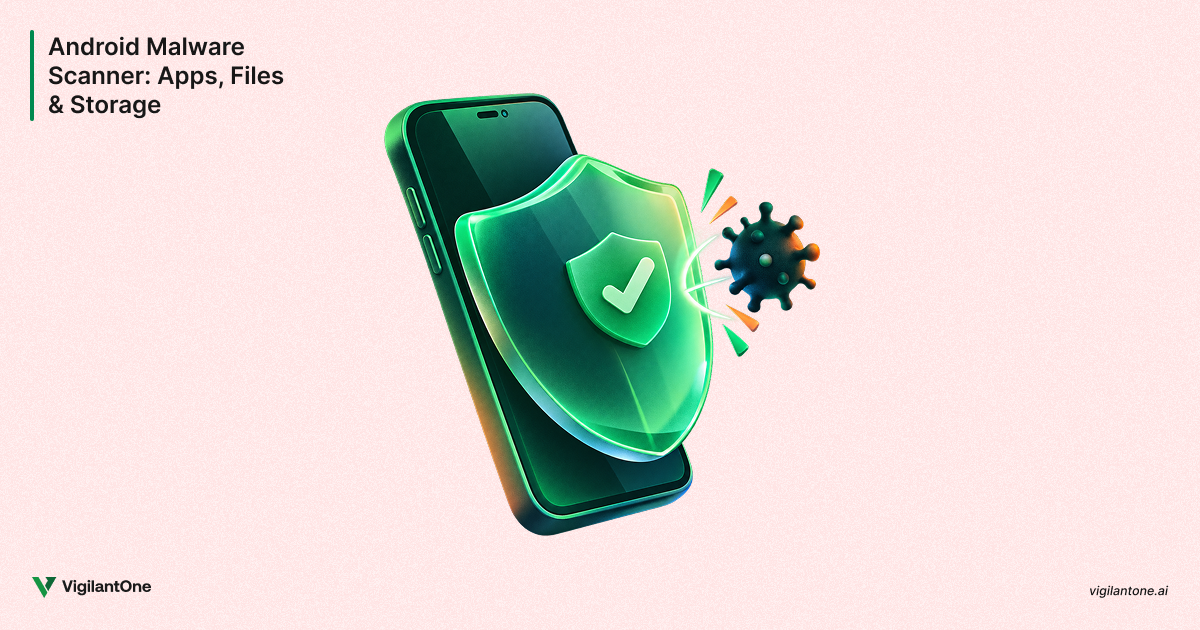
Your Android phone holds personal photos, banking apps, messages, documents, and important account details. But a harmful app or downloaded file can put that information at risk. Sometimes, the warning signs are obvious, such as unwanted advertisements. Other times, a malicious app runs quietly in the background.
An Android malware scanner helps identify suspicious software and potential threats before they cause further problems. However, scanning installed apps is not the same as checking downloaded files or phone storage.
Understanding these differences helps you know what your phone's security scan actually checks. In this guide, we'll explain what malware scanners can detect, how app and file scanning work, and what you should do if a threat appears.
What Does an Android Malware Scanner Detect?
An Android malware scanner can identify harmful applications, Trojan programs, spyware, adware, ransomware, and other potentially unwanted software. Depending on its capabilities, it may also examine APKs, downloaded files, and supported storage locations. The exact coverage varies by security app, so check which scan types it actually provides.
What Is an Android Malware Scanner?
An Android malware scanner is a security tool that checks your phone for malicious or suspicious software. It examines applications or other supported items and compares their characteristics against known threats and detection rules.
Some scanners offer manual scans that you start yourself. Others provide real-time protection that checks certain activities, such as app installation or file access.
These functions are not identical. A scanner that checks installed applications may not automatically examine every document, photo, or file on your phone.
That distinction matters when choosing Android malware protection. Always check what the app scans instead of assuming that one button checks everything.
What Does a Malware Scanner Detect on Android?
Detection varies by scanner. Common targets include:
Malicious Apps, Trojans, and Fake Apps
A malicious app may pose as a cleaner or banking tool. A Trojan disguises itself to steal information.
In Bangladesh, fake bKash or Nagad apps may imitate trusted services. Check the developer and never enter a PIN just because an app looks familiar.
Spyware, Adware, and Ransomware
Spyware collects information; adware pushes unwanted ads. PUPs may be intrusive. Ransomware can lock files. No scanner catches every new threat.
How to Scan Android Apps for Malware
Open your security app, choose its malware scan, and review the results when it finishes.
Open the security app.
Select an installed-app scan, if available.
Wait for the scan to finish.
Review flagged app names and details.
Follow the recommended action if the alert is credible.
Google Play Protect adds another layer. In the Play Store, tap your profile picture, choose Play Protect, and scan. Keep app scanning enabled. Google checks apps at installation and periodically scans for harmful apps. Google's instructions.
How to Check an App Before Installing It
Check the developer and permissions. Avoid modded APKs. Permission to install from an outside source does not make an APK safe.
Can a Malware Scanner Check APK Files?
An APK is an Android installation package. Some products scan APKs; check whether yours does.
Do not install an APK sent through WhatsApp just because you know the sender. Their account may be compromised. Prefer a verified Play Store listing.
How to Scan Files and Phone Storage for Malware
App scanning checks installed software; file scanning checks selected downloads or documents when supported.
Look for a file or storage scan and select a folder. Do not assume every PDF or message attachment is checked automatically.
A full scan may cover more locations, but Android permissions can limit access. An app scan is not automatically a storage scan.
Scan type | Typical purpose |
App scan | Checks installed applications |
File scan | Checks selected files, if supported |
Full scan | Checks a wider set of permitted locations |
Scan after installing an outside APK. Enable real-time protection if offered.
Google Play Protect vs. a Separate Malware Scanner
Google Play Protect checks Play Store apps before download and periodically scans the device, including apps from other sources. It may warn about, disable, or remove harmful apps; it does not promise to inspect every personal file.
A separate security app may add manual scans. Compare its documented coverage.
What to Do If a Scan Finds Malware
Identify the flagged item and follow the scanner's advice. Check alert details before removing an unfamiliar app or file manually. If appropriate, open Android Settings, select Apps, and uninstall the suspicious app.
Delete suspicious downloads unopened and update Android. If you entered banking details or an MFS PIN, contact the provider officially and secure the account.
If it will not uninstall, seek technical help. A factory reset may be needed; back up carefully.
How to Protect Android from Malware
Install apps from trusted stores and verified developers.
Keep Android and apps updated.
Leave Google Play Protect enabled.
Review permissions and remove unused apps.
Avoid modded APKs and cracked-app links.
Do not open unexpected attachments.
In Bangladesh, open bKash or Nagad directly rather than following unexpected message links.
VigilantOne Mobile Security offers real-time malware and app scanning on Android. Its product information does not specify separate full-storage or document scanning.
Frequently Asked Questions
How often should I scan my Android phone for malware?
Keep real-time protection on if available. Run a manual scan after installing an outside APK, downloading a suspicious file, or noticing unusual behavior. Periodic checks are useful; frequency depends on your habits and your app's features.
Can an Android malware scanner detect spyware?
It may detect known spyware or suspicious app behavior, but new or targeted spyware can evade detection. Review permissions, remove unfamiliar apps, and update Android. A clean scan is helpful, not a guarantee.
Can I scan an APK before installing it?
Yes, if your security app supports APK scanning. Select the APK and review the result first. If there is no file-scan option, do not assume it checked the package. Prefer a verified Play Store listing.
Can a malware scanner check WhatsApp downloads?
Some security apps scan selected downloads, but support varies by product and file type. An attachment is not automatically safe because it came from a contact. Avoid unexpected files and use a scanner that supports that format.
How do I know if my Android phone has a virus?
Unfamiliar apps, persistent ads, redirects, and unexpected settings changes can be warning signs, but other issues can cause them too. Review recent installs and run a trusted scan. Secure your accounts if you suspect theft, even if no threat is found.
Is antivirus necessary on Android?
Android includes protections such as Google Play Protect. A separate security app may add manual scanning or phishing protection. Choose documented features, not promises of perfect protection.
Conclusion
An Android malware scanner can check installed apps and, when supported, APKs, downloads, and selected storage. Confirm what your security app covers. Keep Play Protect enabled and avoid untrusted APKs.
Explore VigilantOne Mobile Security for its Android malware and app-scanning features at VigilantOne.