Back
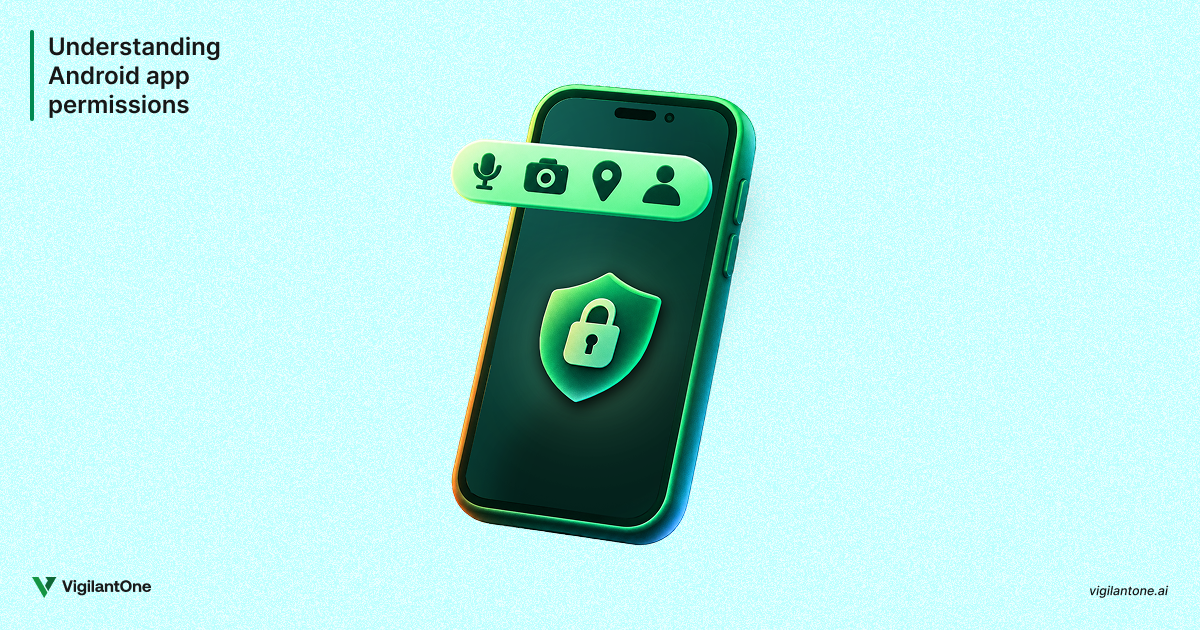
Android app permissions control which information and features an application can access on your phone. These may include your camera, microphone, location and contacts. Understanding Android app permissions helps you decide whether an app really needs access to a particular feature.
The important question is whether the permission matches what you want to do with the app. A permission request does not automatically mean an app is malicious. However, you should not approve every request without understanding why the app needs that access.
For parents helping a child or someone setting up a phone for an older family member, reviewing app permissions should be a shared conversation. Explain what an app is asking to access, discuss whether that access is needed, and make changes together. Remember that the phone owner's personal information and privacy choices should be respected.
Match App Permissions to the Feature You Want to Use
An app should request access that makes sense for the feature you are using. For example:
Camera access: A camera or photo feature may need permission to use your camera.
Microphone access: An app may need the microphone to record a voice message.
Location access: A map or location-based feature may need your location.
Contacts access: An app may need contacts access to display or use your address book.
Before allowing access, ask why the app needs that capability and whether a more limited option is available. This is a simple way to identify Android apps requesting unnecessary permissions.
Android also has different types of permissions. Some are granted during installation, while others require your approval when you use a feature. Certain powerful functions involve separate special access settings.
You may also see the term dangerous permissions in Android's technical documentation. This describes permissions that can provide access to sensitive information or capabilities. It does not mean that an app requesting one is automatically a scam. Google's Android permission overview explains how these permission categories work.
Choose App Access That Fits the Task
Android gives you different permission choices depending on the app, permission and phone version. Available options may include allowing access only while using the app, asking each time or denying access.
The choices are not always the same for every permission. For example, location access may offer different options from contacts access. Read the options shown on your own device rather than assuming every app will display the same permission prompt.
Also consider whether an app needs access for a one-time task or an ongoing feature. You may want to record a single voice note without allowing unnecessary access to continue. On the other hand, denying a permission may prevent the feature that depends on it from working.
If an app stops working after you change a permission, review its explanation before granting broader access. Give it only the access needed for the task.
How to Check and Manage App Permissions on Android
You can review and change app permissions through your Android phone's settings.
The usual steps are:
Open Settings on your phone.
Go to Apps or App Management.
Select the app you want to review.
Open Permissions.
Check which permissions are allowed and choose the access setting you want.
You can also use Android's Permission Manager to see which apps have access to a particular permission. This makes it easier to review apps accessing your camera, microphone, location or contacts.
Google also documents these options in its Android permission guide. Keep in mind that menu names and available settings can vary depending on your phone brand and Android version.
A permission list does not prove that an app has collected or misused all the information it can access. It shows which capabilities the app is allowed to use. If an app has access that does not match its purpose, review why it needs that permission and decide whether to change it.
Be Careful Before Granting Special Access
Some Android features involve special access settings rather than ordinary app permissions. Accessibility Services and other powerful access requests deserve particular attention.
Accessibility features can help people use their phones, including those who need assistance with certain tasks. However, an enabled Accessibility Service can also read information on the screen or perform actions in other apps, depending on the service and its capabilities.
Google recommends allowing restricted settings only when you trust the app developer. Read Google's guidance on restricted settings before enabling access you do not understand.
Be especially careful if an unexpected caller asks you to change these settings. Do not follow instructions to weaken your phone's protections simply because someone on a call tells you to. Verify the request independently before making any changes.
Keep Your Android App Permissions Under Control
You do not need to check every permission every day. A simple review routine can help you keep control of app access:
Remove unused apps: Uninstall applications you no longer need.
Review permissions: Revisit permissions you approved quickly or no longer use.
Understand work app access: If an app needs a particular setting for work, note why it is required so you can review it later.
Keep your phone updated: Install Android and app updates when they are available.
Follow genuine security warnings: Use your phone's built-in settings and trusted security controls when reviewing warnings.
When choosing a mobile security tool, check its published features, privacy information and actual behaviour. VigilantOne's current product information explains its published offering. Consider that information alongside the built-in privacy and permission controls available on your Android phone.
Understanding Android app permissions is an important part of protecting personal data on Android. Check why an app needs access, choose the setting that fits the task, and review permissions when your needs change.
Frequently Asked Questions About Android App Permissions
1. What are Android app permissions?
Android app permissions control which features and information an app can access on your phone. These may include your camera, microphone, location and contacts. You can review these permissions and decide which access to allow.
2. Which Android app permissions are dangerous?
Permissions involving sensitive information or phone functions deserve extra attention. These include camera, microphone, location, contacts and SMS access. Accessibility Services and other special access settings also need careful review. However, a sensitive permission does not automatically mean an app is malicious. Check whether the access matches the app's purpose.
3. How can I check app permissions on Android?
Open Settings > Apps, select the app you want to review, and tap Permissions. You can also open Permission Manager to see which apps have access to specific features, such as your camera, microphone or location. Menu names may vary by Android version and phone brand.
4. How do I remove or change app permissions on Android?
Go to Settings > Apps > select an app > Permissions. Choose the permission you want to change and select an available option, such as Don't allow. You can also review permissions through Permission Manager. Keep in mind that disabling a permission may stop the related app feature from working.
5. Should I allow an app to use Accessibility Services or other special access?
Only enable special access when you understand why the app needs it and trust its developer. Accessibility Services can support people who need help using their phones, but they can also read screen content or perform actions in other apps, depending on the service. Be cautious if an unexpected caller asks you to enable these settings. Verify the request before making changes.